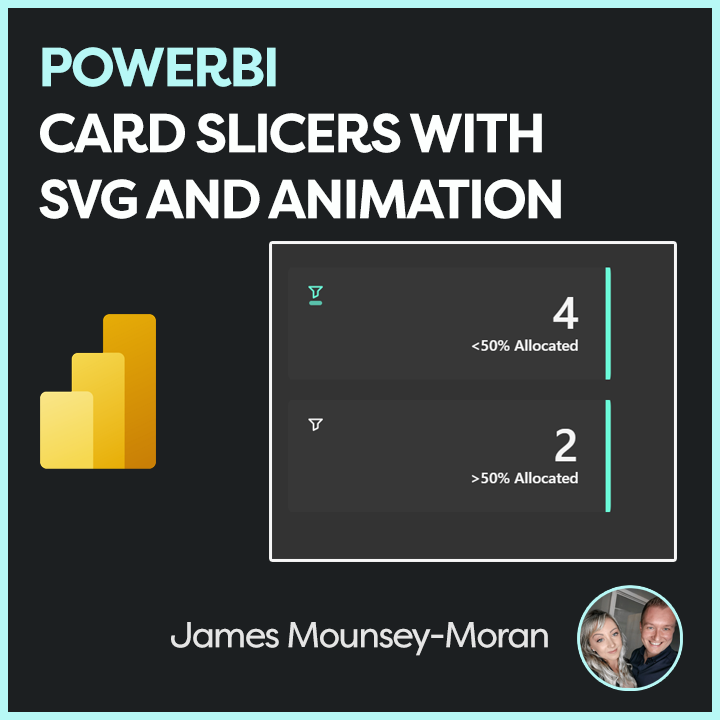
One of the things I hear the most when running demos or working with customers.
“If I click on that KPI will that then filter the report”
Sadly, no. Or well not by default. Kick in Product Manager brain, make it work!
So in this blog post I will be running through my implementation of creating cards that can do exactly that, be clicked on, filter the rest of the report and fit nicely with the overall aesthetic I’ve built with Prism. We can also throw in some SVG animation to enhance everything visually and give it that extra level of polish.
So, how do we make KPI cards clickable?
Power BI doesn’t natively allow KPIs to act as slicers, so we need a workaround.
To be able to click and filter in PowerBI we have a few slicer options, but to make it look like a KPI card that’s when we need to consider some options:
We could:
- Layer it (create a card and then add a dummy button slicer on top)
- Use a Button Slicer
In this example, I’ve gone with the button slicer approach. It integrates cleanly into the overall product UI and is easier to manage as I evolve the design further.
The trick: SVG + Measures = Interactive KPI
In some previous posts, Ive used HTML / SVG with measures that we can then add to the image url field. Ive used the same logic here but then also added a state for Static, Hover and Selected. As we also need to think about making it obvious for end users to see we’ve added a filter.
Some subtle icons and animation can be really effective here
Tutorial
To start off:
- Create a button slicer
- Add the 3 different measures below
Below are my SVG measures. Each one displays a simple KPI-style card with a filter icon and adjusts styling such as colour and animation based on state (Static, Hover, Selected). The end result looks something like this:
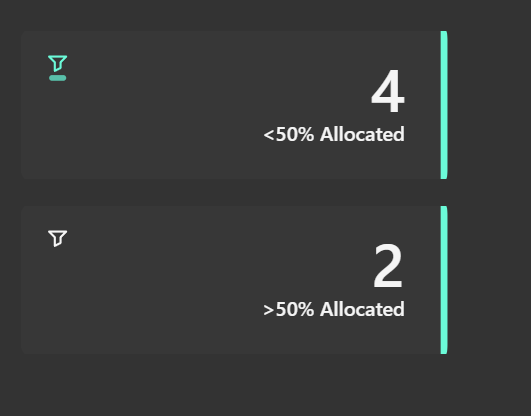
Static
HTML_Card_Filter =
VAR pct = COUNTROWS(
FILTER(
Sheet1,
Sheet1[allocationfilter] = 1
)
)
VAR sizeWidth = 300
VAR sizeHeight = 110
-- Colors
VAR baseColor = "#373737"
VAR textColor = "#f5f5f5"
-- SVG generation
VAR svg = "
<svg xmlns='http://www.w3.org/2000/svg' width='" & sizeWidth & "' height='" & sizeHeight & "' viewBox='0 0 " & sizeWidth & " " & sizeHeight & "'>
<style>
.card-base {
fill: " & baseColor & ";
}
.accent {
fill: #6BFAD8;
}
.title {
font-family: Segoe UI, sans-serif;
font-size: 14px;
font-weight: 600;
fill: " & textColor & ";
text-anchor: end;
}
.value {
font-family: Segoe UI, sans-serif;
font-size: 42px;
font-weight: 600;
fill: " & textColor & ";
text-anchor: end;
}
</style>
<!-- Background -->
<rect class='card-base' width='" & sizeWidth & "' height='" & sizeHeight & "' rx='10' ry='10'/>
<!-- Right accent -->
<path class='accent' d='M " & (sizeWidth - 5) & " 0 L " & (sizeWidth - 5) & " " & sizeHeight & " Q " & sizeWidth & " " & sizeHeight & " " & sizeWidth & " " & (sizeHeight - 10) & " L " & sizeWidth & " 10 Q " & sizeWidth & " 0 " & (sizeWidth - 5) & " 0 Z'/>
<!-- Filter icon in top left -->
<g transform='translate(18, 18)'>
<path d='M2 3h12l-4 4v4l-4 2V7L2 3z' stroke='" & textColor & "' stroke-width='1.5' fill='none' stroke-linecap='round' stroke-linejoin='round'/>
</g>
<!-- Text -->
<text x='" & (sizeWidth - 30) & "' y='60' class='value'>" & pct & "</text>
<text x='" & (sizeWidth - 30) & "' y='80' class='title'><50% Allocated</text>
</svg>
"
RETURN "data:image/svg+xml;utf8," & svg
Hover
HTML_Card_Filter_Hover =
VAR pct = COUNTROWS(
FILTER(
Sheet1,
Sheet1[allocationfilter] = 1
)
)
VAR sizeWidth = 300
VAR sizeHeight = 110
VAR animationKey = CONCATENATE("anim-", FORMAT(NOW(), "hhmmss"))
-- Colors
VAR baseColor = "#373737"
VAR textColor = "#f5f5f5"
-- SVG generation
VAR svg = "
<svg xmlns='http://www.w3.org/2000/svg' width='" & sizeWidth & "' height='" & sizeHeight & "' viewBox='0 0 " & sizeWidth & " " & sizeHeight & "'>
<style>
.card-base {
fill: " & baseColor & ";
}
.accent {
fill: #6BFAD8;
}
.title {
font-family: Segoe UI, sans-serif;
font-size: 14px;
font-weight: 600;
fill: " & textColor & ";
text-anchor: end;
}
.value {
font-family: Segoe UI, sans-serif;
font-size: 42px;
font-weight: 600;
fill: " & textColor & ";
text-anchor: end;
}
.animated-rect {
fill: #6BFAD8;
opacity: 0.7;
}
</style>
<!-- Background -->
<rect class='card-base' width='" & sizeWidth & "' height='" & sizeHeight & "' rx='10' ry='10'/>
<!-- Right accent -->
<path class='accent' d='M " & (sizeWidth - 5) & " 0 L " & (sizeWidth - 5) & " " & sizeHeight & " Q " & sizeWidth & " " & sizeHeight & " " & sizeWidth & " " & (sizeHeight - 10) & " L " & sizeWidth & " 10 Q " & sizeWidth & " 0 " & (sizeWidth - 5) & " 0 Z'/>
<!-- Filter icon in top left -->
<g transform='translate(18, 18)'>
<!-- Static rectangle over filter icon -->
<rect x='2' y='16' width='12' height='4' rx='2' class='animated-rect' data-anim='" & animationKey & "'/>
<path d='M2 3h12l-4 4v4l-4 2V7L2 3z' stroke='" & textColor & "' stroke-width='1.5' fill='none' stroke-linecap='round' stroke-linejoin='round'/>
</g>
<!-- Text -->
<text x='" & (sizeWidth - 30) & "' y='60' class='value'>" & pct & "</text>
<text x='" & (sizeWidth - 30) & "' y='80' class='title'><50% Allocated</text>
</svg>
"
RETURN "data:image/svg+xml;utf8," & svg
Selected
HTML_Card_Filter_Selected =
VAR pct = COUNTROWS(
FILTER(
Sheet1,
Sheet1[allocationfilter] = 1
)
)
VAR sizeWidth = 300
VAR sizeHeight = 110
VAR animationKey = CONCATENATE("anim-", FORMAT(NOW(), "hhmmss"))
-- Colors
VAR baseColor = "#373737"
VAR textColor = "#f5f5f5"
-- SVG generation
VAR svg = "
<svg xmlns='http://www.w3.org/2000/svg' width='" & sizeWidth & "' height='" & sizeHeight & "' viewBox='0 0 " & sizeWidth & " " & sizeHeight & "'>
<style>
.card-base {
fill: " & baseColor & ";
}
.accent {
fill: #6BFAD8;
}
.title {
font-family: Segoe UI, sans-serif;
font-size: 14px;
font-weight: 600;
fill: " & textColor & ";
text-anchor: end;
}
.value {
font-family: Segoe UI, sans-serif;
font-size: 42px;
font-weight: 600;
fill: " & textColor & ";
text-anchor: end;
}
.animated-rect {
fill: #6BFAD8;
opacity: 0.9;
}
.pulse-glow {
fill: none;
stroke: rgba(255, 255, 255, 0.8);
stroke-width: 1;
opacity: 0;
}
</style>
<!-- Background -->
<rect class='card-base' width='" & sizeWidth & "' height='" & sizeHeight & "' rx='10' ry='10'/>
<!-- Right accent -->
<path class='accent' d='M " & (sizeWidth - 5) & " 0 L " & (sizeWidth - 5) & " " & sizeHeight & " Q " & sizeWidth & " " & sizeHeight & " " & sizeWidth & " " & (sizeHeight - 10) & " L " & sizeWidth & " 10 Q " & sizeWidth & " 0 " & (sizeWidth - 5) & " 0 Z'/>
<!-- Filter icon in top left -->
<g transform='translate(18, 18)'>
<!-- Pulsing rectangle over filter icon -->
<rect x='2' y='16' width='12' height='4' rx='2' class='animated-rect'>
<animate attributeName='opacity' values='0.9;0.1;0.9' dur='1.5s' repeatCount='indefinite' begin='0s'/>
<animate attributeName='fill' values='#6BFAD8;#4ECDC4;#6BFAD8' dur='1.5s' repeatCount='indefinite' begin='0s'/>
</rect>
<path d='M2 3h12l-4 4v4l-4 2V7L2 3z' stroke='#6BFAD8' stroke-width='1.5' fill='none' stroke-linecap='round' stroke-linejoin='round'/>
</g>
<!-- Text -->
<text x='" & (sizeWidth - 30) & "' y='60' class='value'>" & pct & "</text>
<text x='" & (sizeWidth - 30) & "' y='80' class='title'><50% Allocated</text>
</svg>
"
RETURN "data:image/svg+xml;utf8," & svg
Once you have added your button slicer and added the above measures, we need to apply them to the different states and ensure all looks and works as required.
With the button slicer selected, first we need to add a field. This field needs to be what you are looking to filter on.
In my example, I used a calculated column linked to my table that was simply filtered on a 1 or 0 depending on the conditions – then linked to the wider data. (The data I used was looking at allocation rates, over 50% was a 1 everything else a 0)
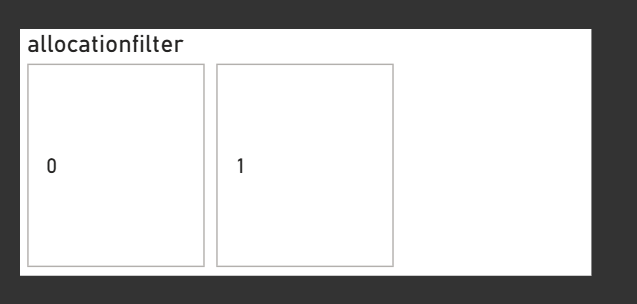
Next:
- On the filters if required set the filter on that visual to show what you are looking to filter on (i.e “1”)
- Under layout, we need to show only the 1 row and column and I generally set the space between buttons as 0
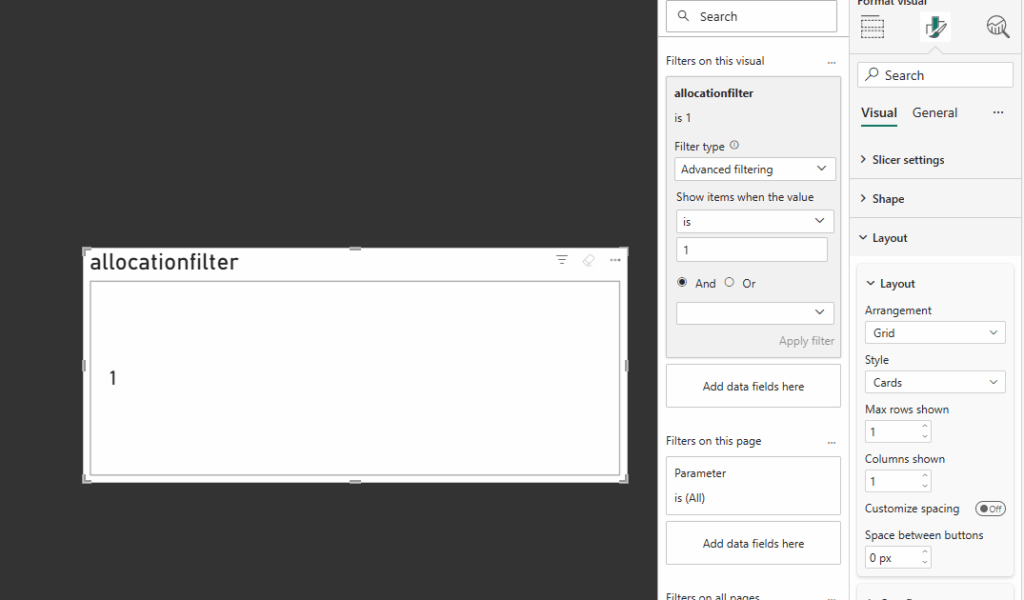
Now to prepare for using the image measures we need to hide everything else
Under General
- Disable Title
- Disable Header Icons
- Disable Effects / Background
Under Visual / Buttons
- Disable Border
- Disable Full
- Padding – Set to custom and set all to 0 px
Under Callout Values
- Disable Values
You should now essentially have a box that shows nothing!
Now back under visual / Image we need to apply the 3 measures – apply the following based on the state
| All | Hover | Selected |
| HTML_Card_Filter | HTML_Card_Hover | HTML_Card_Selected |
With all those added you should now have you Card Slicer!
Now you will need to use fields and titles that make sense to your data, those can all be changed within the measures themselves, just dont forget to change in all 3!
Once complete you should end up with something like the following:
Why This Matters
Beyond just looking nice, this pattern supports:
- Design flexibility: Themed, responsive KPIs tailored to your report’s look and feel
- Better UX: Users get clear, visual feedback
- Faster interactions: No more guessing what’s clickable
Thanks for reading! As always I would love to hear from you, as well as any ideas you have!